Compare two revisions of a lighting fixture schedule
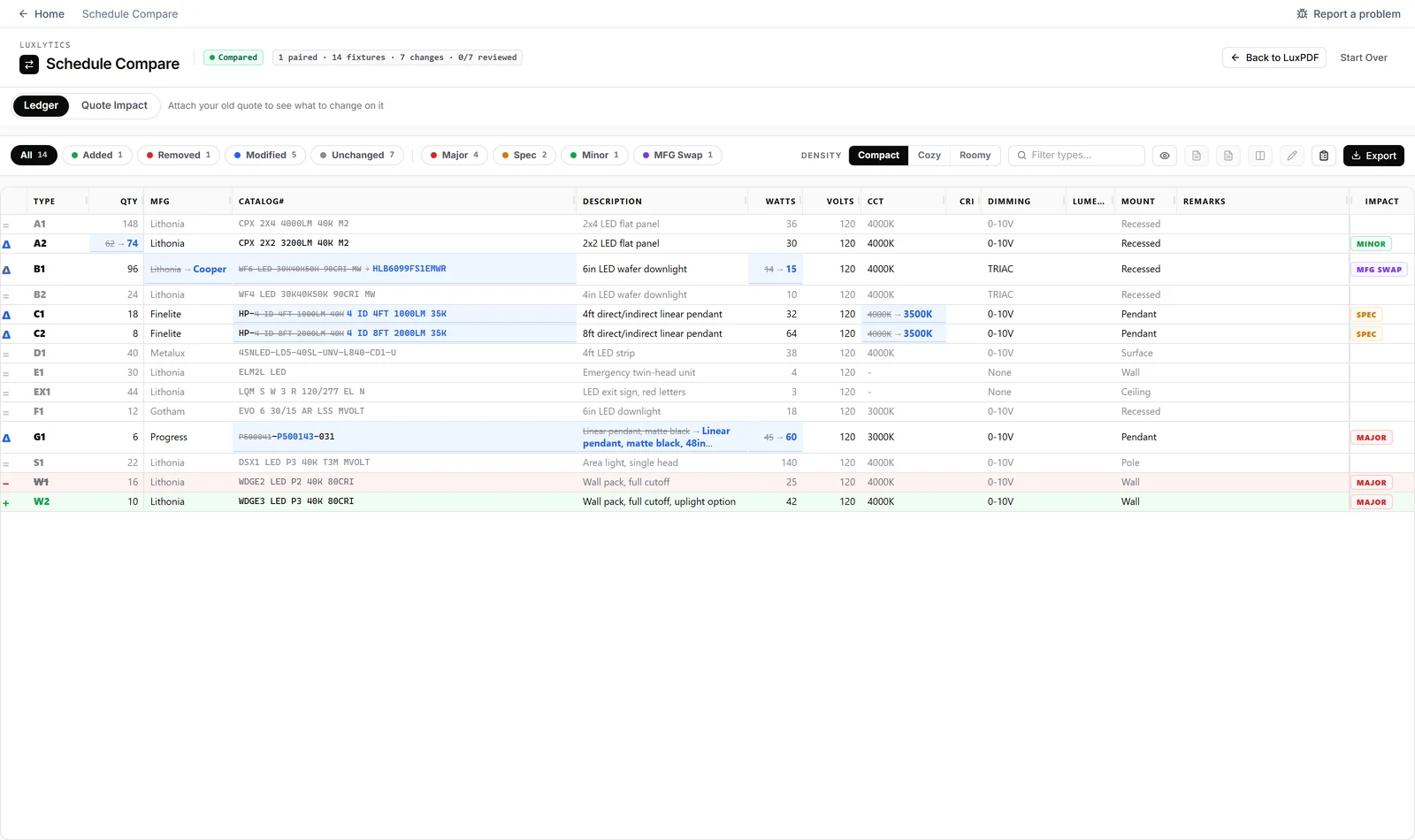
Send the old schedule page and the new schedule page to Schedule Compare. It pairs the schedules, then lists every added, removed and changed fixture type with its old and new values. The Quote Impact view shows which quoted lines need a revision.
$29.99 per user per month · first payment refundable for 14 days · Windows 10 and 11
Why it is slow the usual way
Comparing two schedules by eye means reading both line by line and hoping a changed CCT, mounting or catalog suffix jumps out. When the schedule is 80 rows long, it does not.
How to do it in LuxPDF
Compare the old and new fixture schedules
Send the old and new schedule pages to Schedule Compare to see every added, removed and changed type side by side, then print it as a Ledger PDF.
- Go to the fixture schedule page of the OLD set and click Send OLD in the toolbar (red dot).
- Open the NEW set, go to its schedule page, and click Send NEW (green dot).
- Click the Schedule Compare · 1 old · 1 new chip in the toolbar, then Navigate to Schedule Compare.
- Check that each old schedule is paired with the right new one, then click Compare N Paired Schedules.
- Read the Ledger: every type with its old → new values. Switch to Quote Impact to check a quote against the changes.
- Click Export → Export Comparison for the Excel workbook, or Export Updated Schedule for a clean BOM.
Click Back to LuxPDF to return to your drawings. The Return to Compare chip in the toolbar brings the comparison back.
Common questions
Can I compare more than one schedule page?
Yes. You can send more than one page per side, for example two schedule sheets from each set.
What do I get out of it?
Export Comparison gives you an Excel workbook of the changes. Export Updated Schedule gives you a clean bill of materials.
Does it show the effect on my quote?
Quote Impact carries option changes onto your quoted part and flags the lines that need a revision. Each schedule gets its own tab.
Try it on a sample project first
The in-browser demo walks you through a real LuxPDF workflow on a two-sheet lighting set: parse the schedule, place the markers, keep the legend out, and export to Excel. Nothing to install.
$29.99 per user per month · first payment refundable for 14 days · Windows 10 and 11