Export a lighting takeoff to Excel
Click Export, fill in the project name, tick Excel Takeoff, and click Export Selected. The workbook lists every fixture type with its schedule quantity and the quantity you placed, plus counts by sheet and a project info sheet. With areas set up, it breaks the count down by area too.
$29.99 per user per month · first payment refundable for 14 days · Windows 10 and 11
Why it is slow the usual way
Typing counts from a markup tool into a spreadsheet is where transposed numbers and forgotten types creep in. The person writing the quote should not have to re-check your arithmetic.
How to do it in LuxPDF
Send the count to Excel
Saves your takeoff as an Excel workbook: the schedule as printed with your placed quantities beside it, counts by sheet, and a Project Info sheet.
- Click Export at the right end of the toolbar.
- Fill in Project Name (and Address, Quote # if you like). The file is named after the project.
- Under Choose what to export, click Excel Takeoff, then click Export Selected (1).
- Pick where to save it. The first tab is the schedule as printed, with PLACED QTY in the far-left column; Counts by Sheet shows where each type is.
- Next time, File → Export Excel Takeoff… saves it straight away with the same settings.
Only counted markers go in — excluded sheets and excluded markers are left out. Repeated areas are multiplied out.
Get counts by area in the export
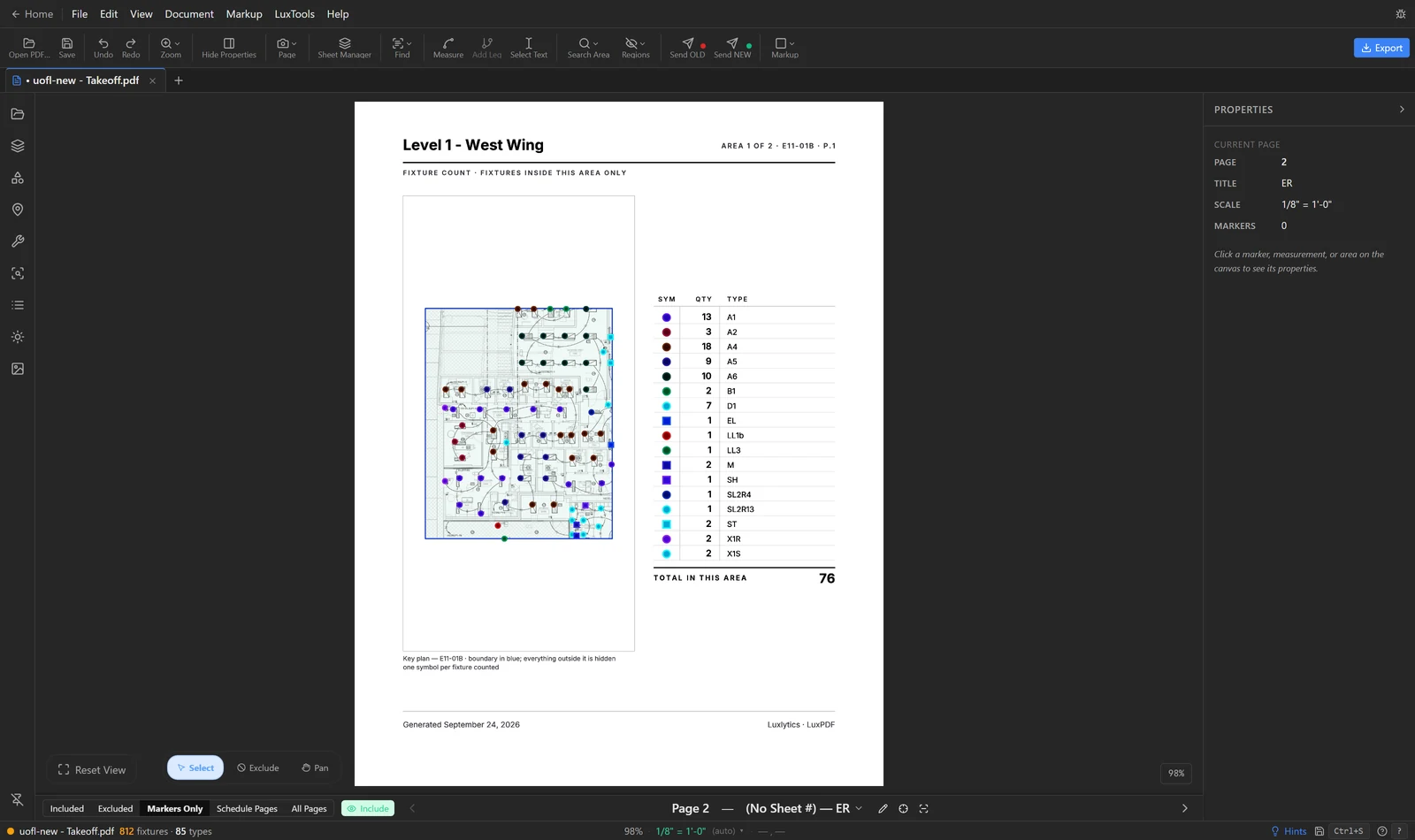
When you have areas, the export breaks the takeoff down by area — with the multiplier applied and a key plan of each area if you want one.
- Set up your areas and their × instances in the Areas tab.
- Click Export in the toolbar.
- Under Area detail, choose Page each, with key plan or Counts only, no key plans.
- Tick Key plans in summary to print a cropped plan of each area beside its counts.
- Pick your formats (Excel Takeoff, Annotated PDF…) and click Export Selected.
In Excel, Counts by Sheet shows each type per sheet, with area repeats multiplied out in the totals.
Common questions
What is in the workbook?
A Fixture Schedule sheet with schedule quantity and placed quantity for every type, Counts by Sheet, Project Info, and, when you use areas, Key Plans and a kit sheet per area.
Are excluded markers counted?
No. Only counted markers go in. Excluded sheets and excluded markers are left out, and repeated areas are multiplied out.
Can I just paste the counts into a sheet I already have?
Yes. Click the copy icon at the top of the Types tab, and Qty and Type paste as two columns.
Try it on a sample project first
The in-browser demo walks you through a real LuxPDF workflow on a two-sheet lighting set: parse the schedule, place the markers, keep the legend out, and export to Excel. Nothing to install.
$29.99 per user per month · first payment refundable for 14 days · Windows 10 and 11