Measure linear lighting runs on PDF drawings
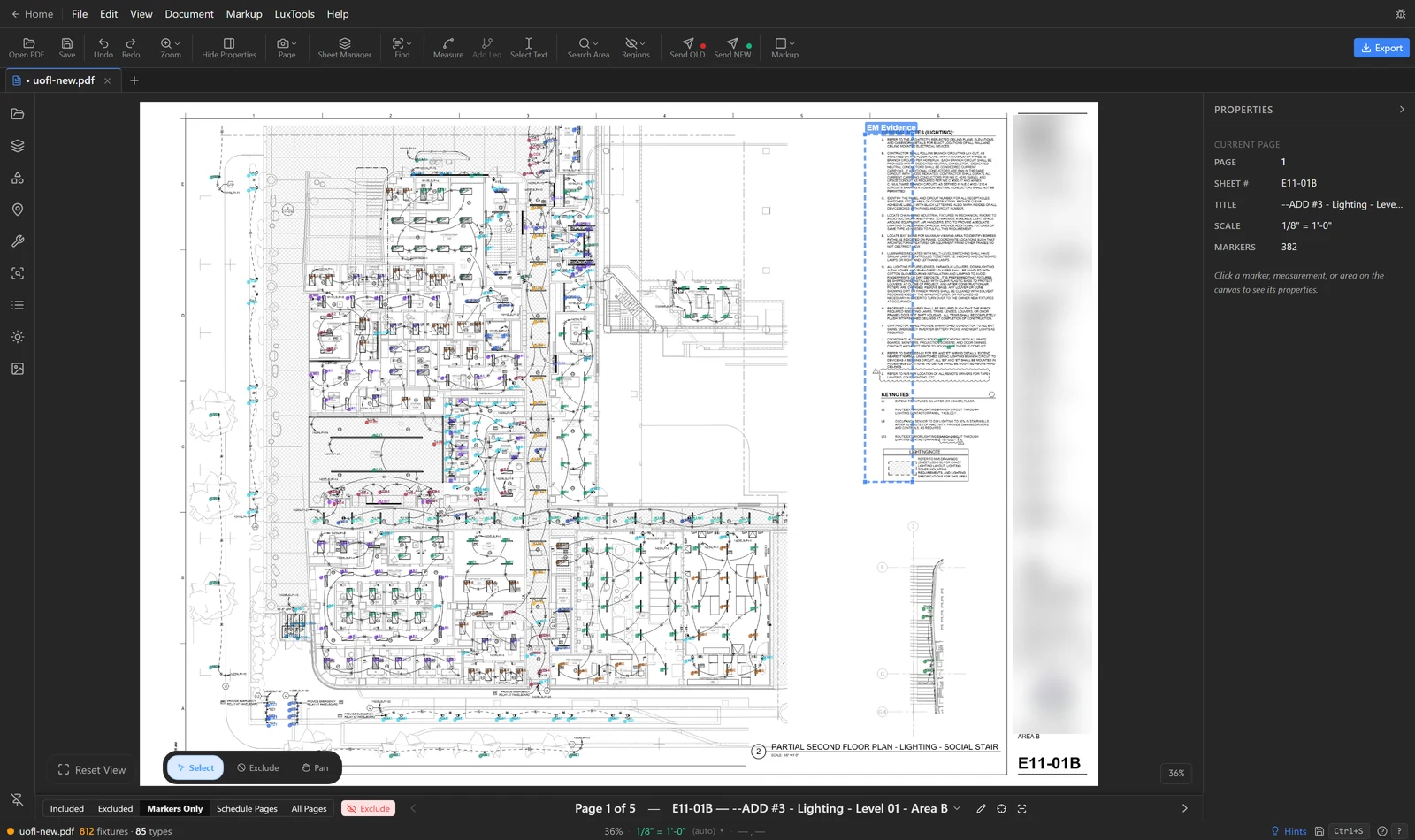
Set the drawing scale, mark your linear fixture types, and click Begin Linear Takeoff. LuxPDF jumps to each linear fixture in turn. You trace the run, confirm the length, and move to the next, so every strip, cove and slot ends up with a length in the takeoff.
$29.99 per user per month · first payment refundable for 14 days · Windows 10 and 11
Why it is slow the usual way
Linear fixtures are counted in feet, not pieces. Measuring them with a general markup tool means one measurement per run, written down by hand, with nothing tying the length back to the fixture type.
How to do it in LuxPDF
Set the drawing scale
Lengths need a scale. LuxPDF reads the scale note on each sheet; when it can’t, or it reads it wrong, set it from a list or a known dimension.
- Check the scale in the status bar. Green with “(auto)” means it was read from the sheet; “⚠ no scale” means there is none.
- Know the scale? Click it and pick one from the list, like 1/8" = 1'-0". It applies to this page.
- Otherwise choose Calibrate page (draw line), then click both ends of a dimension you know, like a column bay.
- In Calibrate Scale, click Use on the detected scale, pick a Standard Scale, or type the real length in Feet and Inches.
- Pick a Rounding Preference and click Apply Scale.
- LuxPDF then asks you to check it on another dimension. Press Esc to skip the check.
Sheets with the same scale note and no scale yet pick up a scale you calibrate automatically.
Measure every linear fixture in the set
Mark your linear types, then LuxPDF walks you fixture by fixture: trace each run, confirm the type, and move to the next.
- In the Types tab, click ⚡ Linear on each linear type (strip, cove, slot). Each needs at least one placed marker.
- Click Begin Linear Takeoff at the bottom of the Types tab. LuxPDF jumps to the first fixture.
- Click Measure next, trace the run (click each corner, double-click the end), then press Enter. It moves to the next fixture.
- Or click a length under Presets:, or click a row’s length and type it.
- When every row has a length, click Confirm & Next Type. The lengths are saved and the next type opens in the same window.
- On the last type the button reads Confirm & Finish. Touching fixtures are then offered for merging.
More holds Skip this fixture (no length), Skip this type and Exclude from count. Find copies (Beta) snips one symbol and measures its copies — check them.
Common questions
What if the sheet has no scale?
LuxPDF reads the scale note on each sheet. When it cannot, pick the scale from a list or calibrate from a dimension you know, like a column bay.
What about runs tagged with a length, like F1-8?
Linear label search finds those tags and counts each length as its own type.
Can a run branch?
Yes. While measuring, click Add Leg to branch the run, then Complete to keep it.
Try it on a sample project first
The in-browser demo walks you through a real LuxPDF workflow on a two-sheet lighting set: parse the schedule, place the markers, keep the legend out, and export to Excel. Nothing to install.
$29.99 per user per month · first payment refundable for 14 days · Windows 10 and 11