Count light fixtures on PDF drawings
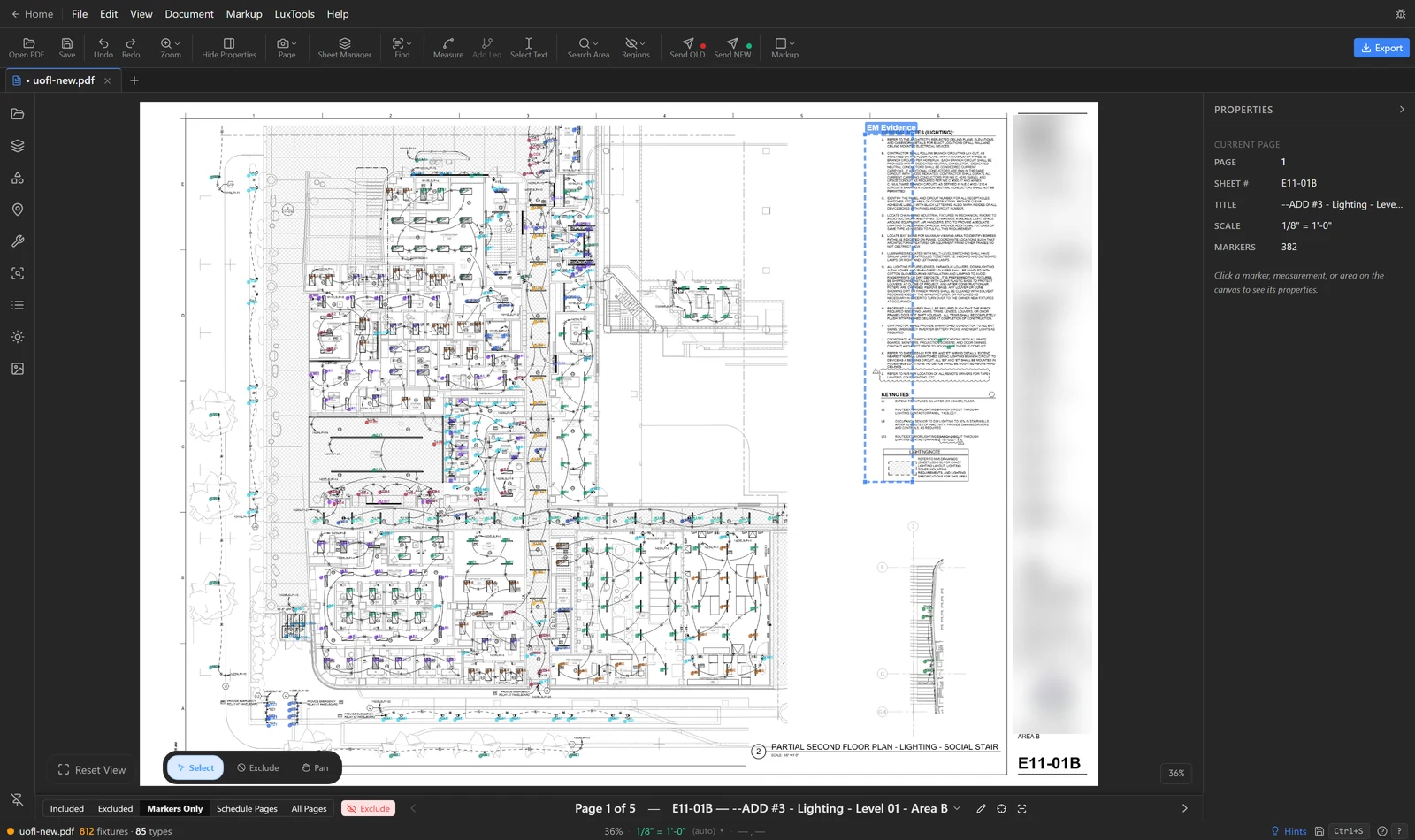
Load your fixture types from the schedule, then search the whole drawing set for each type tag. LuxPDF places a count marker on every tag it finds, on every sheet, so you click once per fixture type instead of once per fixture. A search area keeps the symbol legend and title block out of the count.
$29.99 per user per month · first payment refundable for 14 days · Windows 10 and 11
Why it is slow the usual way
In a general PDF markup tool you build a count tool for each fixture type and then click every symbol on every sheet. On a mid-size job that is hundreds of clicks per type. Miss one sheet, or click a fixture twice, and the quote is wrong before anyone notices.
How to do it in LuxPDF
Get your fixture types from the schedule
The sure-fire way to load your types: drag a box over the TYPE column of the fixture schedule and LuxPDF reads every tag — even on a scanned sheet.
- Go to the fixture schedule page. Find → Jump to Fixture Schedule Page in the toolbar takes you there.
- Choose Pick Types from Schedule… in the LuxTools menu.
- Drag a box over the TYPE column — just the tags, top to bottom. On a scanned sheet it reads them with OCR by itself.
- Click Search these Types in the pop-up.
- The Search these types window opens with every tag it read. Check the list, then search the drawings for them.
Shift+T (Select Text) does the same thing: box the TYPE column, then click Search these Types.
Count every type on every sheet
Check the tags LuxPDF read from the schedule, then search the whole set in one go — a count marker lands on every tag it finds.
- In the Search these types window, check the list. Fix a misread tag, remove anything that isn’t a type with its ×, or click Add type.
- Tap ⚡ Linear on continuous types (strip, cove, slot) so they’re ready for a linear takeoff.
- Click Search N types. LuxPDF searches every included sheet and drops a count marker on every tag it finds.
- Read the results: each type shows how many were placed. Types it couldn’t find are added to the Types tab at 0.
- Click Done. The Types tab lists every type with its count.
Exclude cover sheets and details in Sheet Manager first — excluded sheets are skipped.
Keep title blocks and legends out of the count
Draw one box around the floor plan. Tags outside it — title block, legends, notes, the schedule itself — are left out of the count on every page.
- Choose Define Search Area… in the Document menu. LuxPDF jumps to the page with the most markers.
- The box is usually drawn already — LuxPDF finds the title block. Check a sheet or two. If not, drag a box around the plan, leaving out the title block and legends.
- Click Apply. Markers outside the box get an X and aren’t counted — on every page. Redraw starts over.
- Got a site plan? LuxPDF jumps there next. Draw a box around the site plan and click Apply — site plans get their own box.
- Flip through a few sheets. A plan that sits somewhere else gets its own box: Search Area → Define Page Search Area.
Nothing is deleted — change or clear the box later and those markers count again. Ctrl+Z undoes an Apply.
Common questions
Does it count fixtures on scanned drawings?
Yes. Parse Schedule reads scanned schedules with OCR. For plans with no text layer, or fixtures drawn without a tag, Image Search finds every copy of a symbol you snip.
What about tags in the legend and title block?
Draw one search area around the floor plan. Markers outside it get an X and are not counted, on every page. Nothing is deleted, so you can change the box later.
How do I check the count before I send it?
Review Excluded steps through every marker that was left out and why. Possible Overlaps catches a tag that matched two types. The Types tab shows a count for every type, so a type at 0 stands out.
Can I count by floor or by room?
Yes. Create areas for floors, wings or rooms. A typical unit can be taken off once and multiplied, and the export breaks the count down by area.
Try it on a sample project first
The in-browser demo walks you through a real LuxPDF workflow on a two-sheet lighting set: parse the schedule, place the markers, keep the legend out, and export to Excel. Nothing to install.
$29.99 per user per month · first payment refundable for 14 days · Windows 10 and 11