Update a lighting takeoff when revised drawings come in
Open your finished takeoff and choose Update to New Drawings. LuxPDF matches the old sheets to the new ones, moves every marker, run and area onto the revised set, clouds what changed, and walks you through each change. You review the differences instead of recounting the job.
$29.99 per user per month · first payment refundable for 14 days · Windows 10 and 11
Why it is slow the usual way
Without a revision tool, an addendum means starting the count again or flipping between two PDFs looking for what moved. Small changes like one added downlight or a type swapped on a single sheet are exactly the ones that get missed.
How to do it in LuxPDF
New drawings came in — carry my takeoff over
Moves your takeoff — markers, runs, markups, areas — onto a new set in seconds. Only the sheets your takeoff is on are found and compared; changes get clouded.
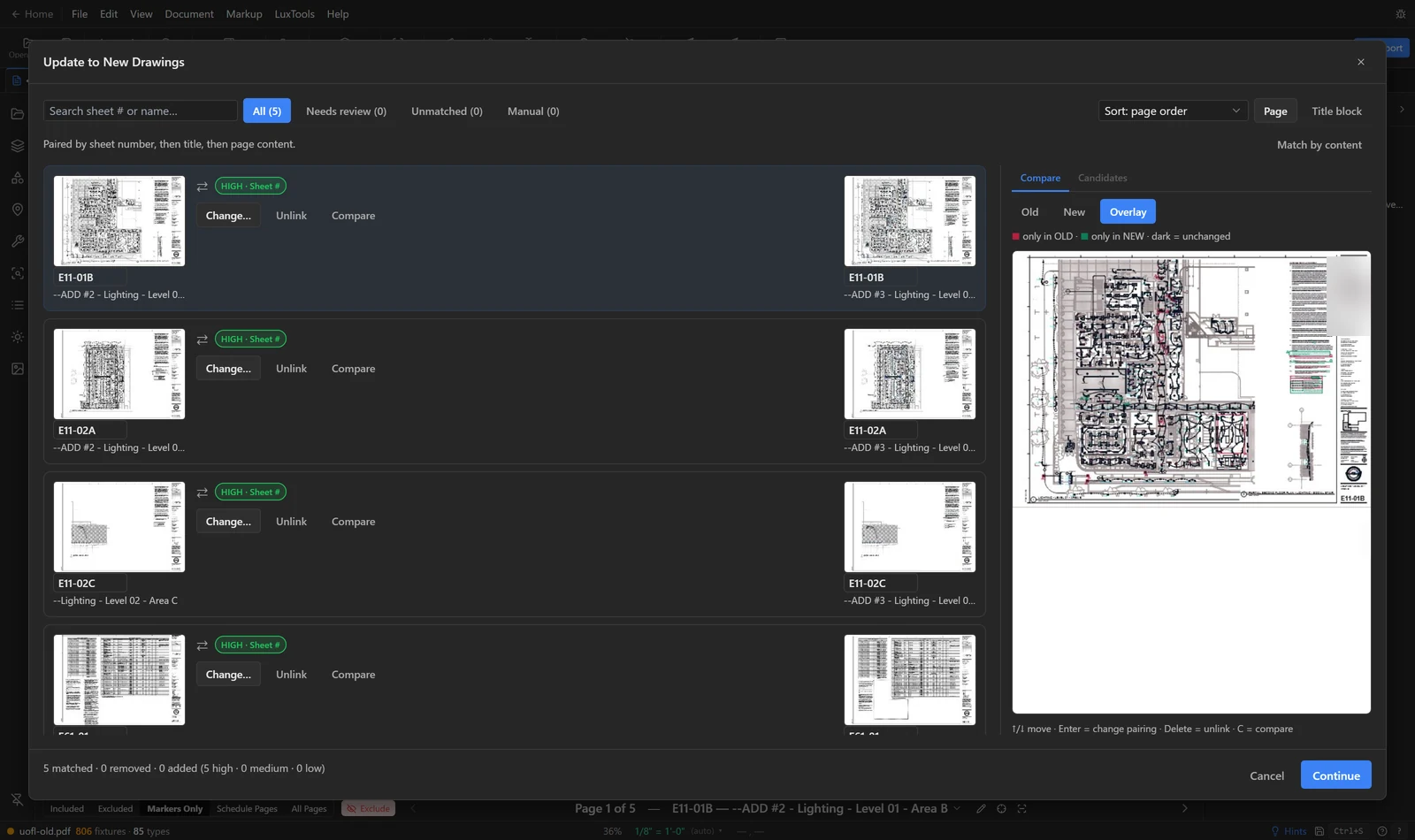
- Open your takeoff (the OLD set) and choose Document → Update to New Drawings…. It lists the sheets your takeoff is on.
- Click Choose the new drawings and pick the NEW PDF. Only your takeoff sheets are found (by sheet number) and compared — nothing else is read.
- Read the summary: per sheet, markers that still fit, moved, are new or are gone. Wrong sheet? Type the right page. A sheet missing from the new set keeps its old sheet.
- Click Update takeoff. The new drawings open with your takeoff on them; every other sheet comes in excluded.
- Yellow clouds mark where fixtures were added, removed or moved. Compare with Old, New and Overlay in the Revision pill, and review new fixture types there.
- Press Ctrl+Shift+S and Save As a new file. Nothing is written to disk until you do.
Your original takeoff file is never touched — the updated set only exists in LuxPDF until you Save As.
See what changed after updating drawings
After an update, yellow clouds mark every fixture change, already applied and re-counted. Compare old and new, and show the other drawing changes on demand.
- After Compare & Migrate, the new drawings open with your takeoff carried over. Yellow clouds mark where fixtures were added, removed or moved.
- Click Old to see the previous drawings, New for the new set, or Overlay for both at once — the old drawing in red, the new one in green.
- Click Drawing changes to show red clouds around every other edit — notes, linework, title blocks — that did not change a fixture. Click it again to hide them.
- Hide clouds turns the yellow clouds off for a clean view; Clouds brings them back.
- If tags turned up that might be new fixture types, Review new types appears — add the real ones, skip device and room tags.
- Press Ctrl+Shift+S and Save As to keep everything.
Every fixture change is already applied. Delete or move a marker as usual if the update got one wrong.
Common questions
Does it change my original file?
No. Your original takeoff is never touched. The updated set only exists in LuxPDF until you Save As.
What if the sheet numbers changed?
Check the sheet matches before you continue. Fix a wrong pair with Change…, or click Detect NEW sheet #s if nothing matched.
Does the export show what changed?
Yes. The Excel takeoff of an updated set adds Revision Summary and Schedule Changes tabs.
Try it on a sample project first
The in-browser demo walks you through a real LuxPDF workflow on a two-sheet lighting set: parse the schedule, place the markers, keep the legend out, and export to Excel. Nothing to install.
$29.99 per user per month · first payment refundable for 14 days · Windows 10 and 11