Parse a lighting fixture schedule from a PDF
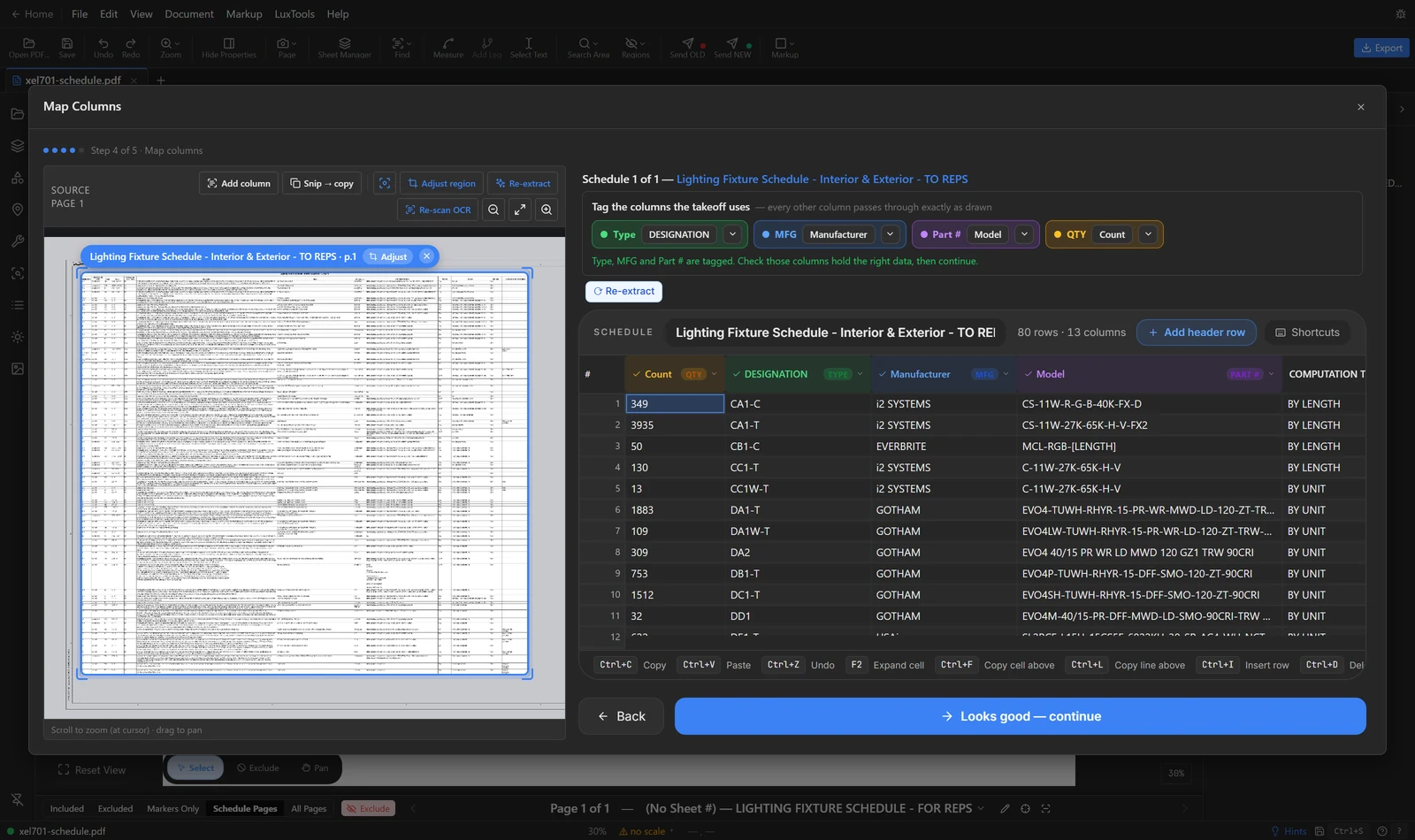
Click Parse Schedule. LuxPDF finds the sheet whose title reads like a fixture schedule, outlines each schedule it finds, and reads every row. You confirm which columns hold the type, manufacturer, part number and quantity, and the result becomes your list of fixture types with nothing retyped.
$29.99 per user per month · first payment refundable for 14 days · Windows 10 and 11
Why it is slow the usual way
Copying a fixture schedule out of a PDF usually means retyping it, or pasting text that arrives as one jumbled column. Catalog numbers are long and easy to get wrong, and a wrong part number travels all the way to the quote and the submittal.
How to do it in LuxPDF
Import the full schedule with maker and part #
Reads the whole fixture schedule — type, manufacturer, part number and every other column — and counts the types across the set.
- Click Parse Schedule on the LuxTools toolbar (or LuxTools → Parse Schedule…). It stays grey until the PDF engine has started.
- Click Parse the schedule (Find the schedule when no sheet is titled as one). Other options covers one page, the whole set, or OCR for scans.
- Each schedule it finds gets a blue box on the drawing. Use × Exclude or + Include on a box, or Add schedule to draw one it missed.
- Click Extract Schedules.
- At Map columns, tag the Type, MFG and Part # columns, then click Looks good — continue.
- Schedule loaded shows how many types and markers it found. Click Define Search Area next, or Skip.
Second schedule? Parse it and pick Add to takeoff: only new types come in, tags you have keep their markers (blanks filled in). Replace swaps the matched types.
Tell LuxPDF which column is Type, MFG and Part #
In Parse Schedule, tag the Type column (required) plus MFG and Part #, so markers, exports and submittals carry the right data.
- At Map columns, check the chips above the grid: Type, MFG, Part # and QTY. A tagged chip names its column.
- On an untagged chip, click Pick column and choose the column — sample values show what’s in each one.
- Column not in the grid? Click Select on page and drag a box around that column on the drawing. Each value lands on its row.
- Or click a column header in the grid and choose what it is.
- Click Looks good — continue (or Next schedule → when there are more).
- If MFG or Part # is still untagged, a check pops up: Tag now, Go back and tag, or continue without them.
Type is required — markers are placed by it. Without MFG and Part #, those come out blank on every export.
Read a scanned schedule with OCR
When the schedule is a scan or a flattened image, draw a box around the table and LuxPDF reads it with OCR, then maps the columns as usual.
- Choose Parse Schedule… in the LuxTools menu, open Other options, and click Select & OCR the schedule (scanned sheets).
- Go to the schedule page and click Select Region.
- Drag a tight box around the whole table, header row included. Leave out the title block and notes.
- Click Extract. A big table can take a minute — Stop cancels.
- Check the table it read, then click Map Columns and tag Type, MFG and Part # as usual.
Only need the type tags? Pick Types from Schedule… reads a scanned TYPE column too, with no table step.
Common questions
What if the schedule is a scan or a flattened image?
Use Select & OCR the schedule under Other options. Drag a box around the table, and LuxPDF reads it with OCR before you map the columns as usual.
What if one sheet has two schedules on it?
Each schedule gets its own blue box. Use × Exclude or + Include on a box to keep just the ones you want, or Add schedule to draw one it missed.
Do I lose the other columns?
No. You tag Type, MFG, Part # and QTY because the takeoff uses them. Every other column passes through exactly as drawn.
Can I fix a value it read wrong?
Yes. The Map columns grid works like a spreadsheet: click a cell to edit it before you continue.
Try it on a sample project first
The in-browser demo walks you through a real LuxPDF workflow on a two-sheet lighting set: parse the schedule, place the markers, keep the legend out, and export to Excel. Nothing to install.
$29.99 per user per month · first payment refundable for 14 days · Windows 10 and 11